
How to Amend Your Booking in The Tour Guy AppUpdated 34 minutes ago
Booked the wrong date, had a change of plans, or need to adjust your group size? We understand that plans can change, and we're here to make it as easy as possible for you to adjust your tour!
The fastest and easiest way to reschedule, add guests, or amend your reservation is directly in The Tour Guy App.
Download The Tour Guy App: Available for free on iOS and Android.
Follow this step-by-step guide to update your booking in seconds.
Step 1: SIGN IN
Launch The Tour Guy App and sign in.
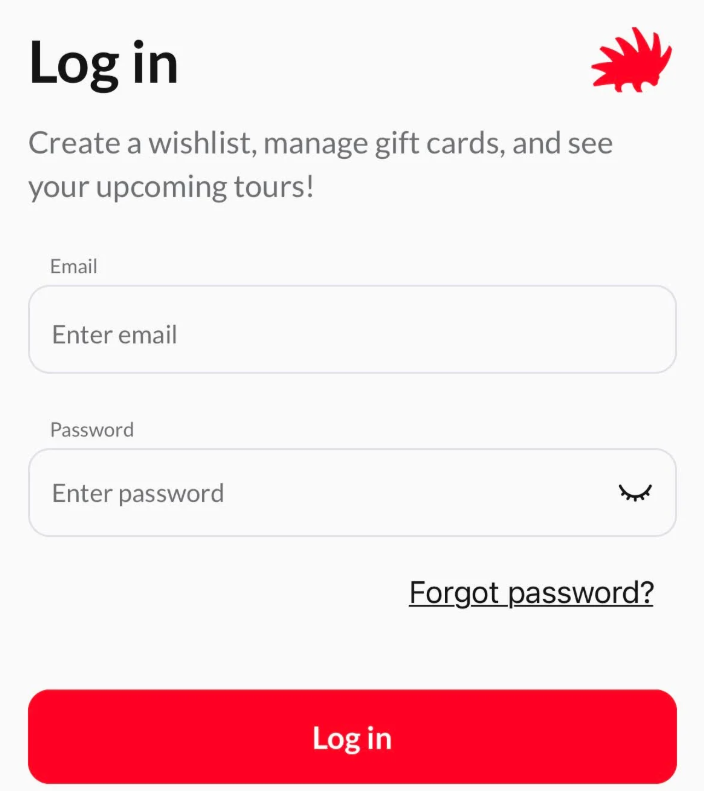
Don't have an account? Create Account
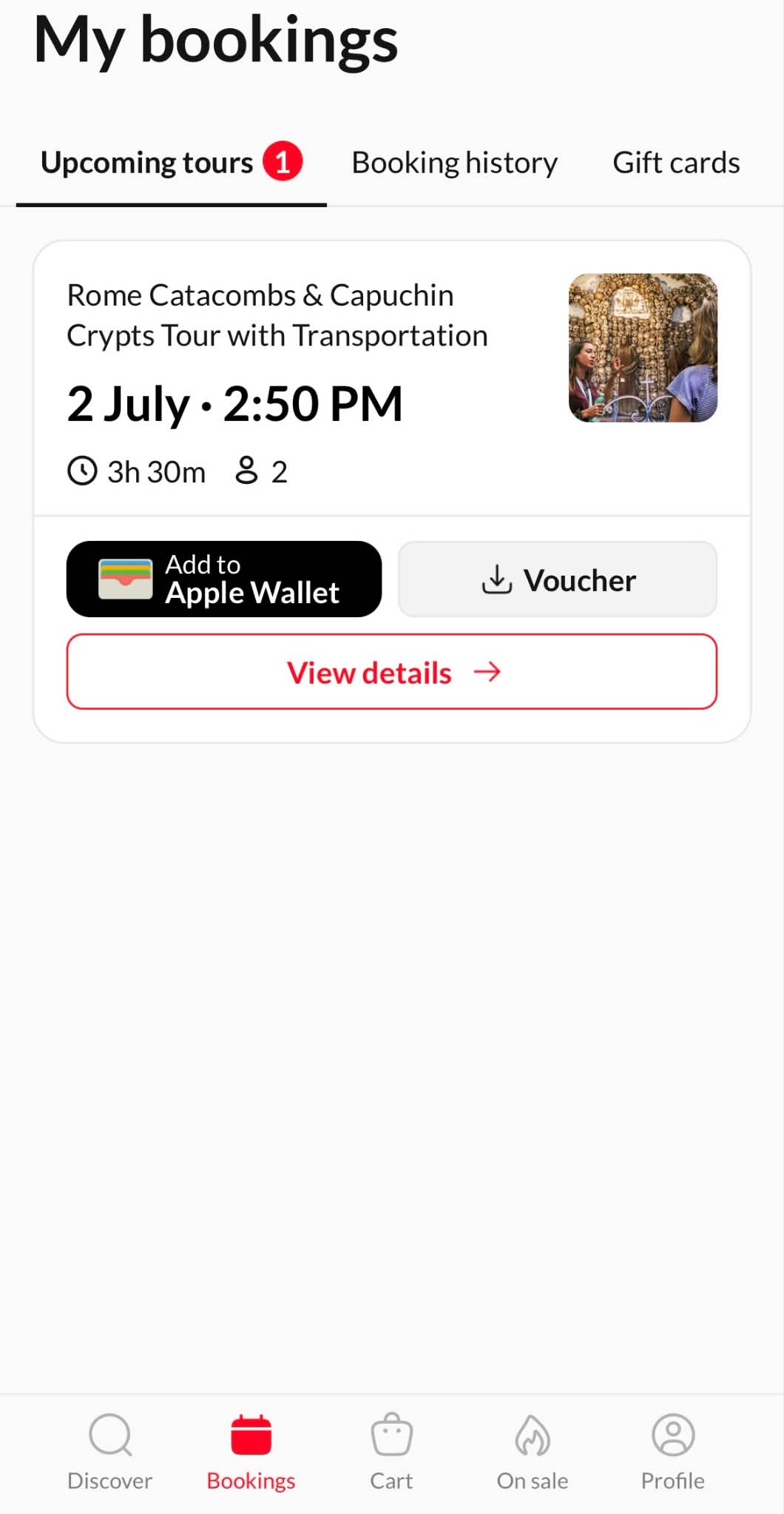
Step 2: VIEW BOOKINGS & UPCOMING TOURS
Tap the Bookings tab to see your upcoming tours. Identify the reservation you wish to amend.
A preview of your current tour details will be displayed. When you're ready to proceed with a change, tap the red outlined button labeled View details.
Step 3: INITIATE MODIFICATION
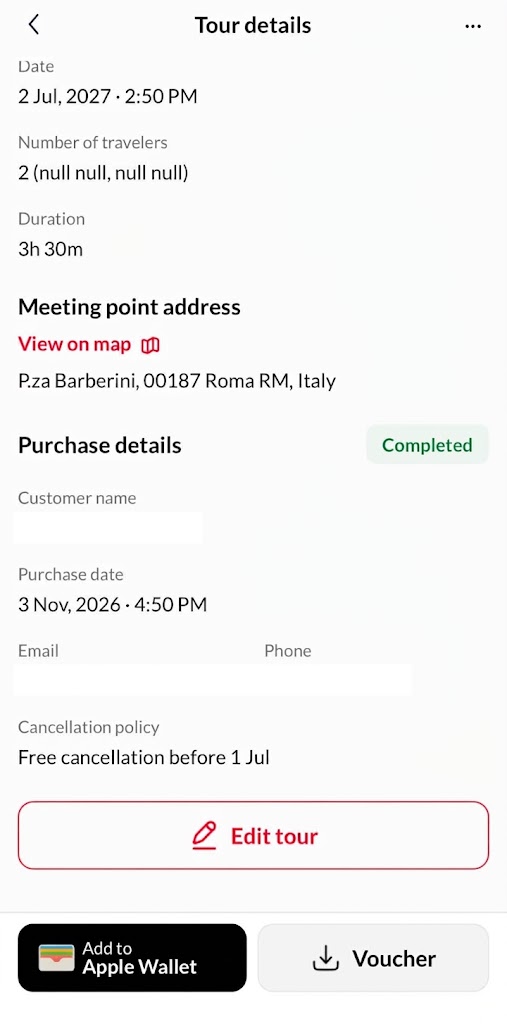
Scroll to the bottom of the details screen. Here, below your purchase summary, you will find and tap the 'Edit tour' button.
Step 4: MAKE YOUR CHANGES
Once inside the edit screen, you have two paths for modification.
To Adjust Travellers: Use the + or - buttons next to the age category to adjust your group size.
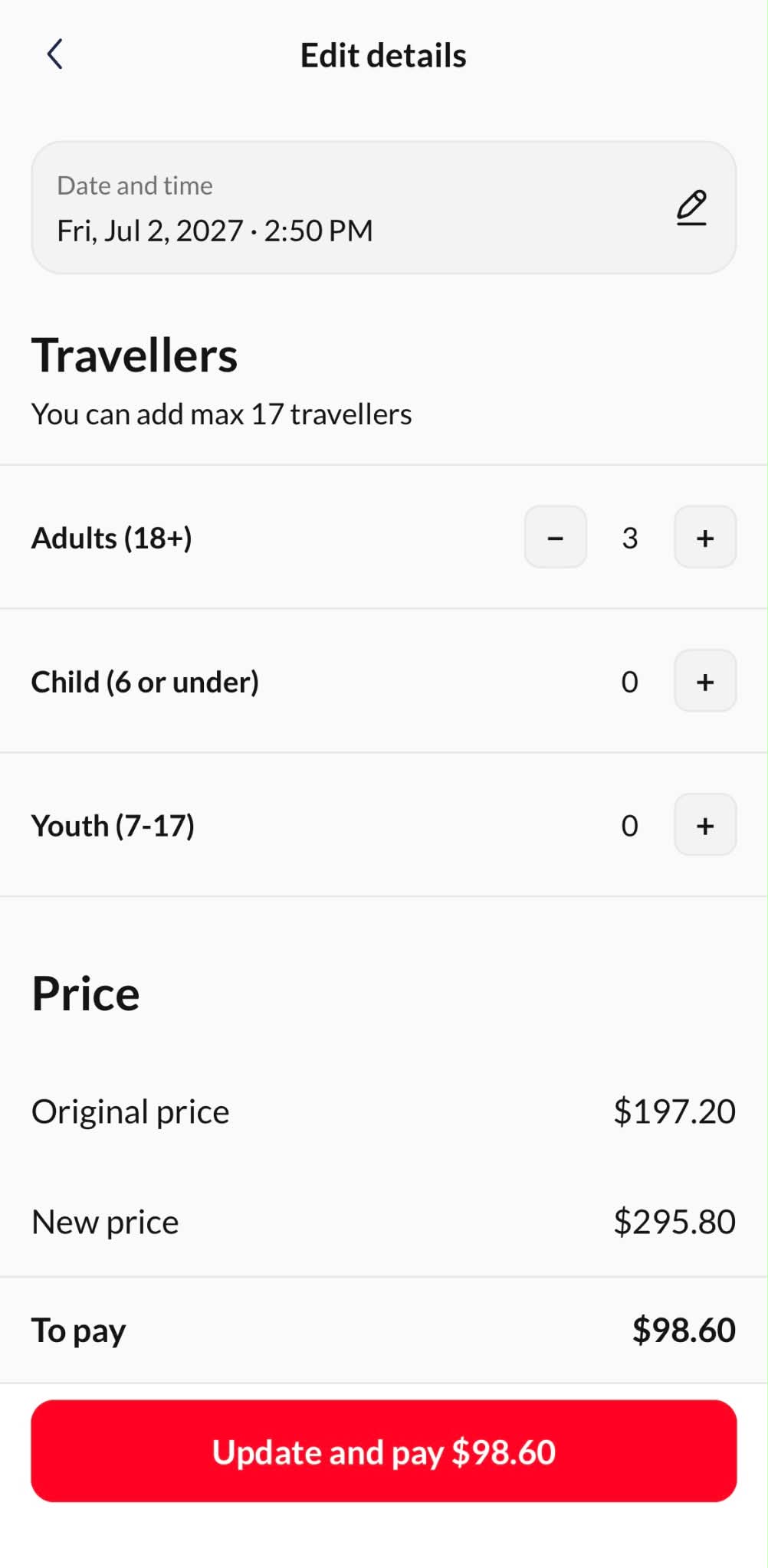
To Change Date and Time: Tap the pencil icon (top right) to open the calendar and select a new available date or start time.
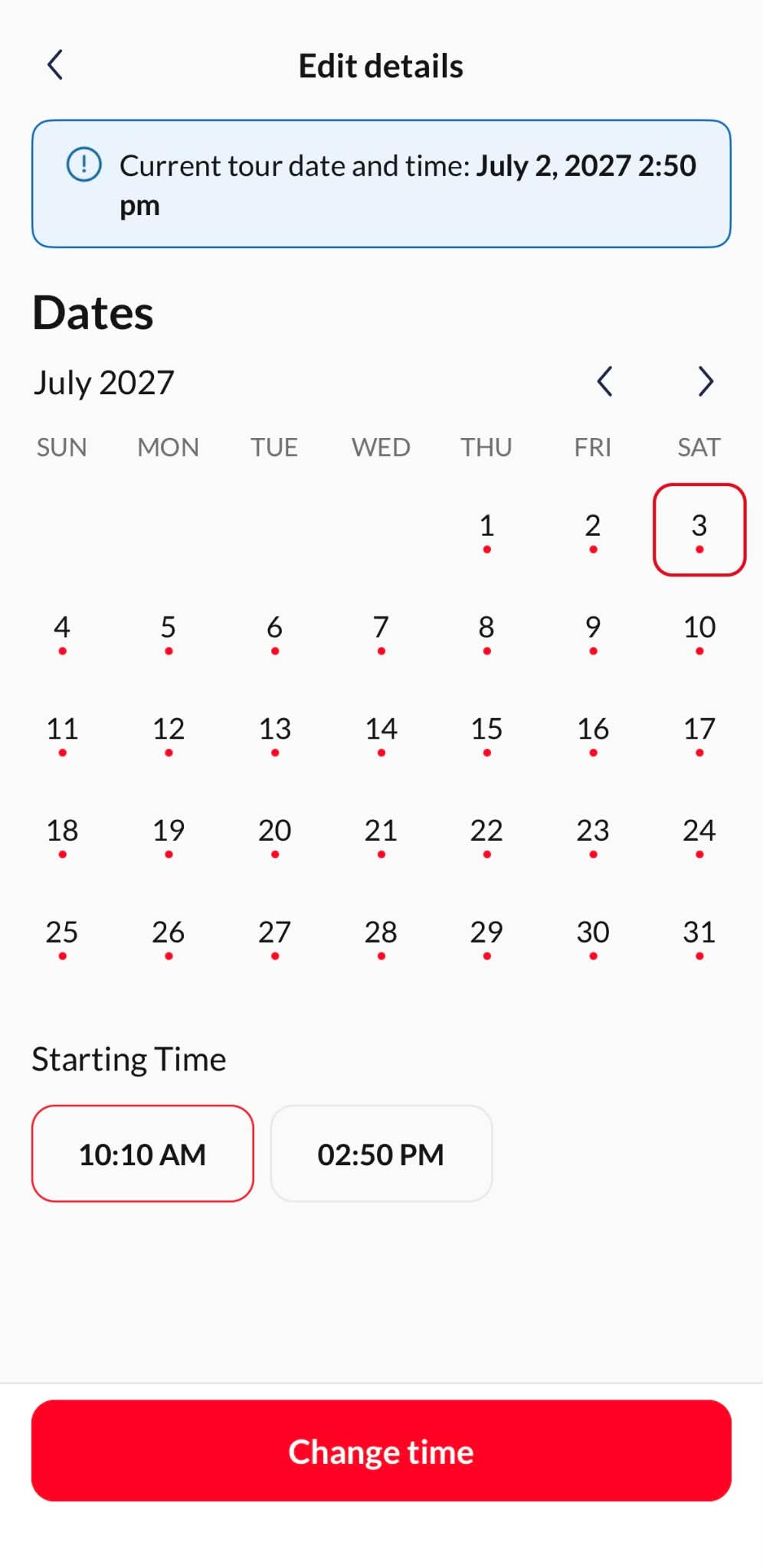
Step 5: REVIEW & CONFIRM
Review the summary of your changes and any price adjustments:
Adding Guests: You will be prompted to settle the additional balance instantly (Update and pay).
Subtracting Guests: You will see a summary of your partial refund (Update and refund).
Tap the red button at the bottom to finalize your changes.
Step 6: CONFIRMATION
Once processed, an in-app confirmation will confirm that your booking has been updated. Your voucher inside Bookings will instantly update to reflect your new date, time, or guest count!
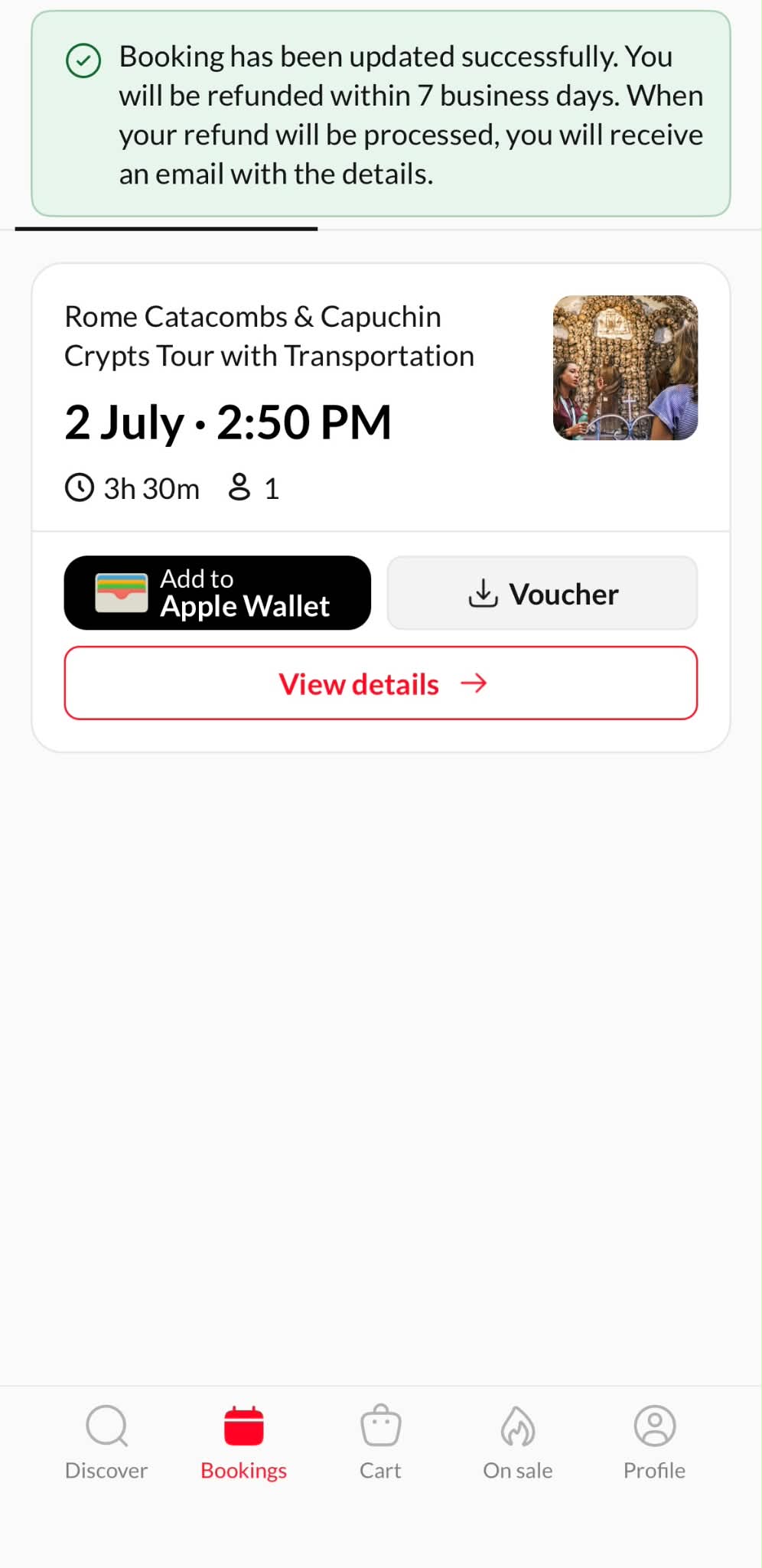
Please Note: If the app does not allow you to edit or cancel your tour, it is likely because your reservation is within the non-refundable window of our cancellation policy. If you have any questions or need any additional information, please contact us at [email protected].