
How to book with a gift cardUpdated 3 months ago
Have a credit or gift card with The Tour Guy but wondering, 'How do I book using my credit or gift card?' This step-by-step guide will walk you through the process to ensure a seamless booking experience for your next unforgettable journey.
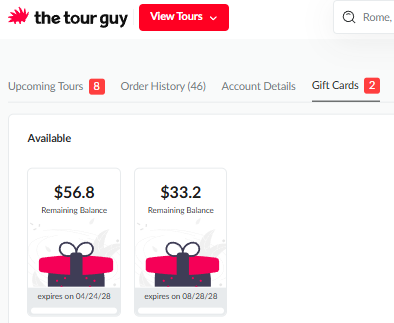
1. Check Your Available Balance:
Before you start browsing, you can check your current gift card balance in your account dashboard.
Log in to your account on our website.
Head to the "My Bookings" section.
Select the "Gift Cards" tab to see your available funds.
2. Explore Tours and Choose Your Experience:
Browse through our diverse range of tours and find the one that piques your interest. Each tour page provides detailed information about the experience, allowing you to make an informed decision. Make sure to check out the Cancellation Policy and FAQs for any questions you might have prior to booking!
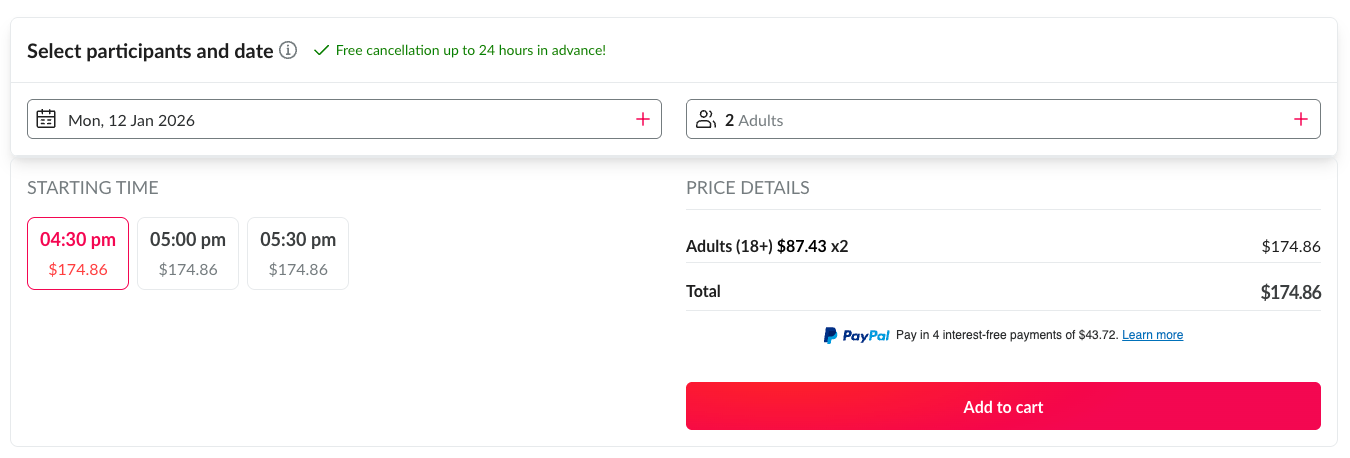
3. Select 'Check Availability,' 'Book Now,' or 'Add to Cart':
Once you've chosen your preferred tour, click on the ‘Add’ button to add it to your cart. This will initiate the booking process and take you to the checkout page.
4. Provide Your Booking Details
Begin the process of purchasing your tour by completing the initial checkout steps. This includes providing your Customer Information (name and contact details) and answering any required tour questions, such as noting relevant food allergies.
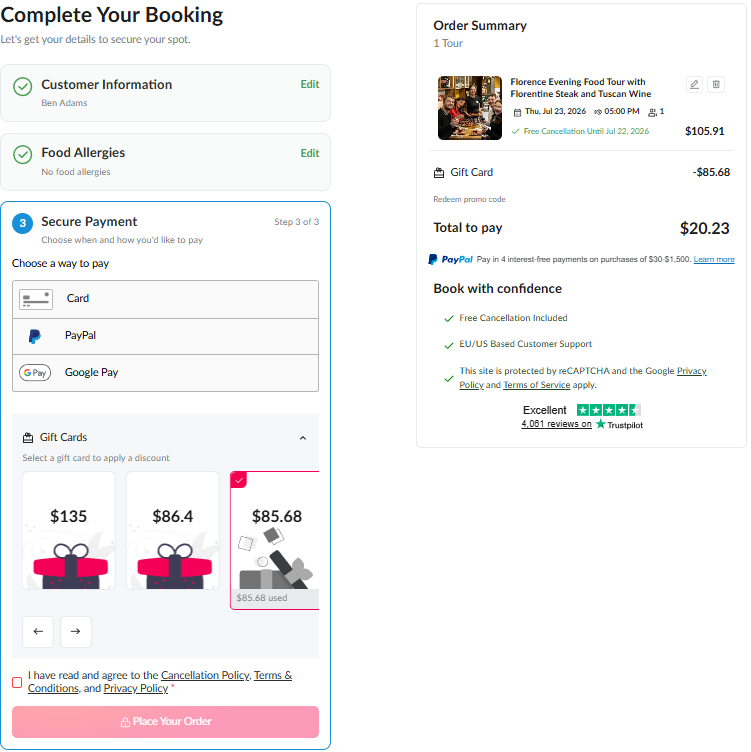
5. Apply Credit at the 'Secure Payment' Step
Once you reach here, you will see the Gift Cards section located directly below the credit card entry box.
Select Your Card: Your available gift cards will appear as selectable cards at the bottom of the payment panel.
Apply the Discount: Simply click on the gift card you want to use to automatically apply the discount to your order total.
Desktop
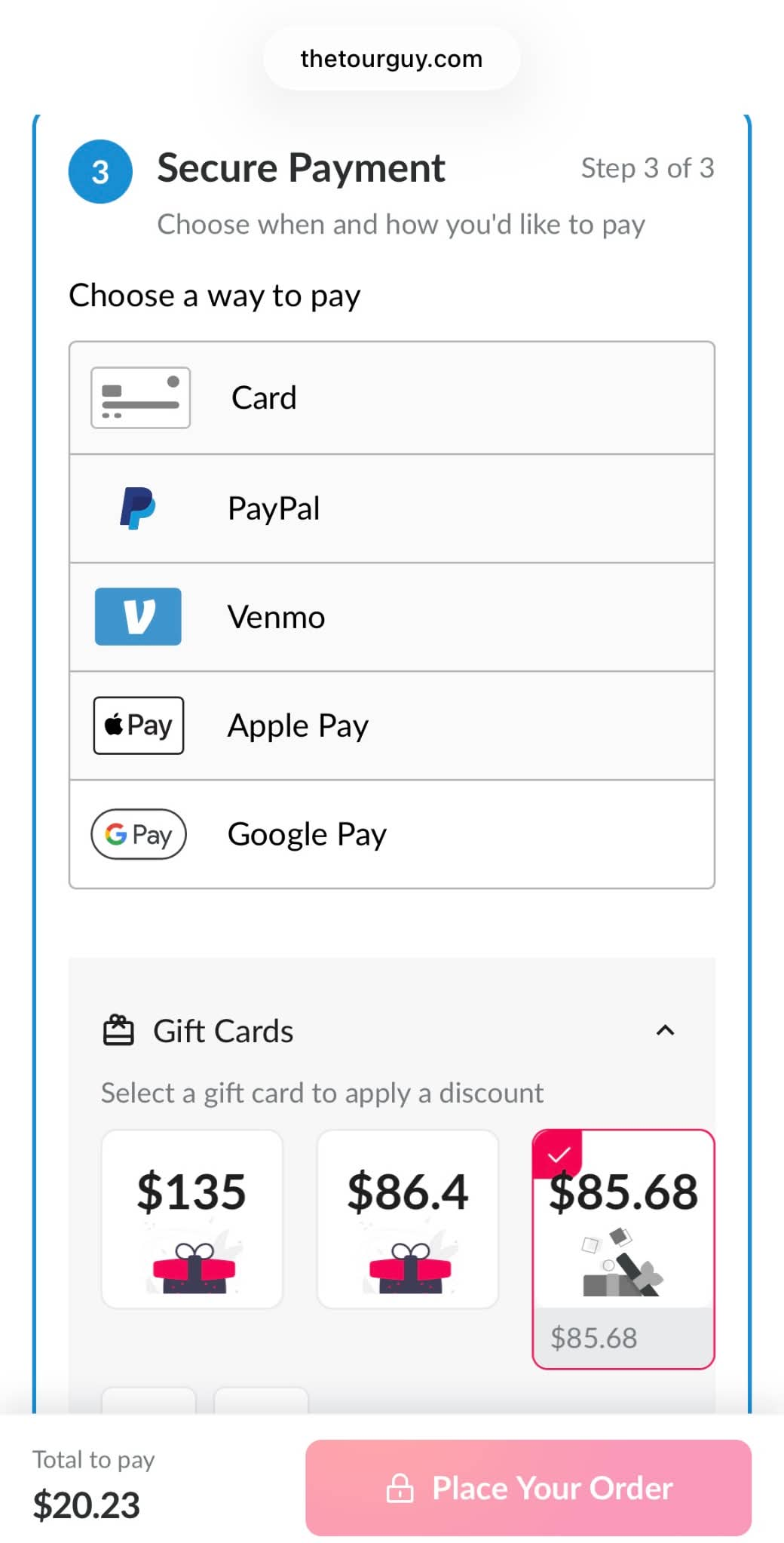
Mobile
Select your gift card amount and it will automatically apply to your order! You'll see the amount subtracted from your order total.
5. Complete Order
If your gift card covers the full amount, you can continue with "Complete Order" button to finalize your order. If you have a remaining balance, you can click "Continue to Payment"
6. Enjoy Your Tour!
Congratulations! You’ve successfully utilized your credit with us to book an awesome tour! Please check your email for your confirmation voucher, which includes all of the necessary details for your tour.
How to book with a gift card on TheRomanGuy
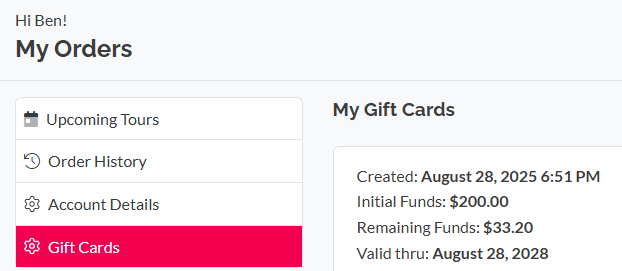
1. Check Your Available Balance:
Before you start browsing, you can check your current gift card balance in your account dashboard.
Log in to your account on our website.
Head to the "My Bookings" section.
Select the "Gift Cards" tab to see your available funds.
2. Explore Tours and Choose Your Experience:
Browse through our diverse range of tours and find the one that piques your interest. Each tour page provides detailed information about the experience, allowing you to make an informed decision. Make sure to check out the Cancellation Policy and FAQs for any questions you might have prior to booking!
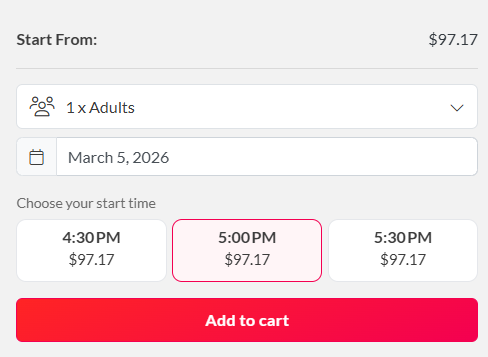
3. Select 'Check Availability,' 'Book Now,' or 'Add to Cart':
Once you've chosen your preferred tour, click on the ‘Add to cart’ button to add it to your cart. This will initiate the booking process and take you to the checkout page.
4. Provide Your Booking Details
Begin the process of purchasing your tour by completing the initial checkout steps. This includes providing your Customer Information (name and contact details) and answering any required tour questions, such as noting relevant food allergies.
5. Apply Credit at the 'Secure Payment' Step
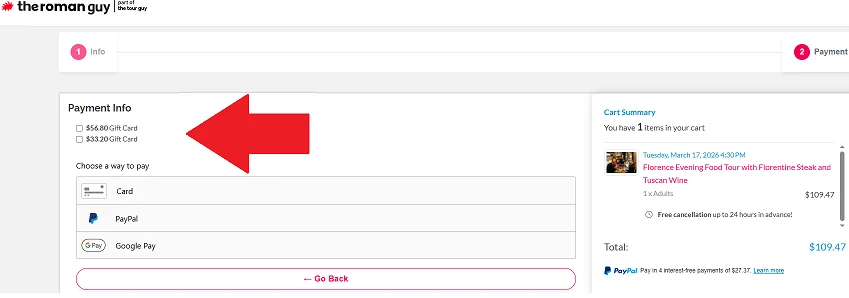
Once you reach here, you will see the Gift Cards section located directly below the credit card entry box.
Select Your Card: Your available gift cards will appear as selectable cards at the bottom of the payment panel.
Apply the Discount: Simply click on the gift card you want to use to automatically apply the discount to your order total.
Desktop
Mobile
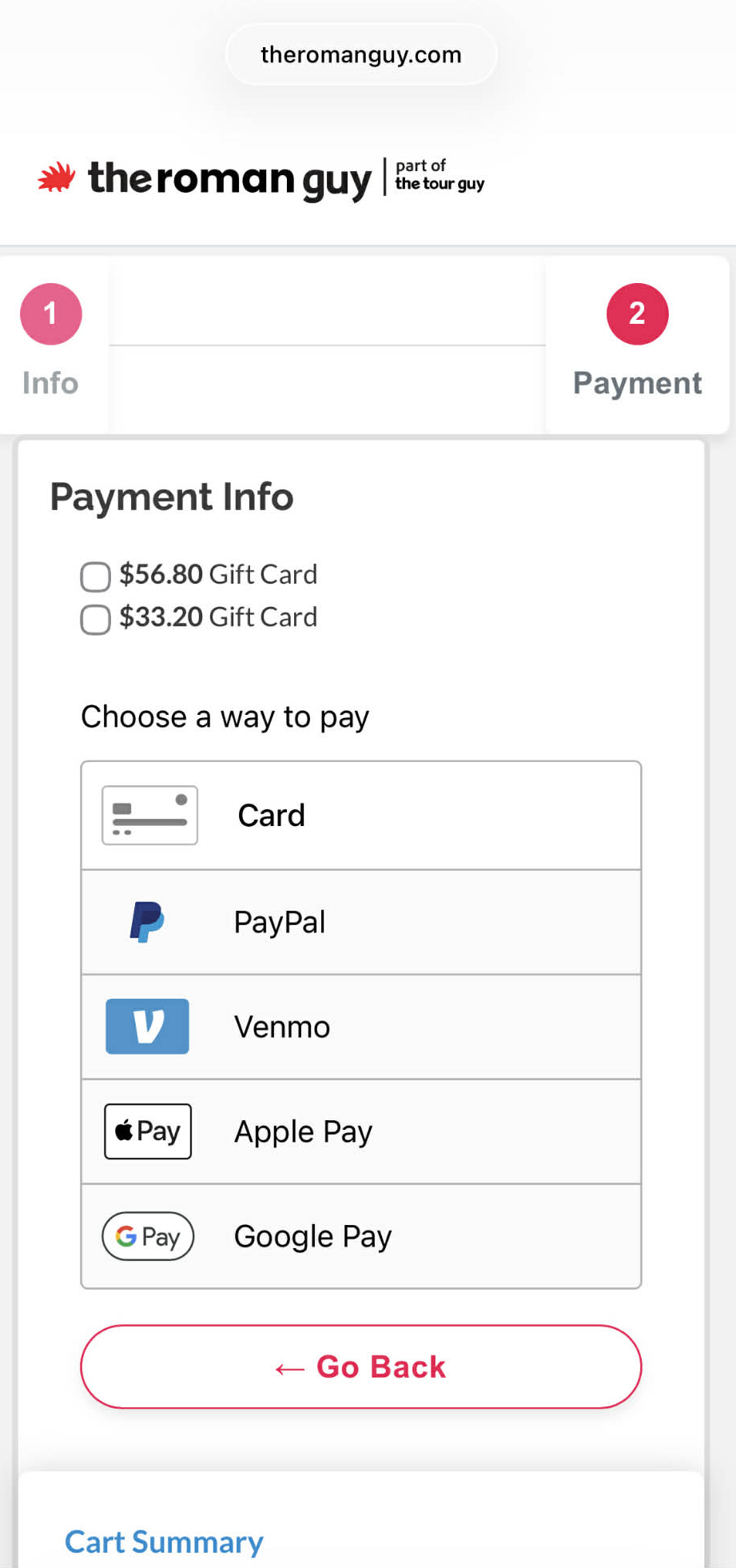
Select your gift card amount and it will automatically apply your order! You'll see the amount subtracted from your order total.
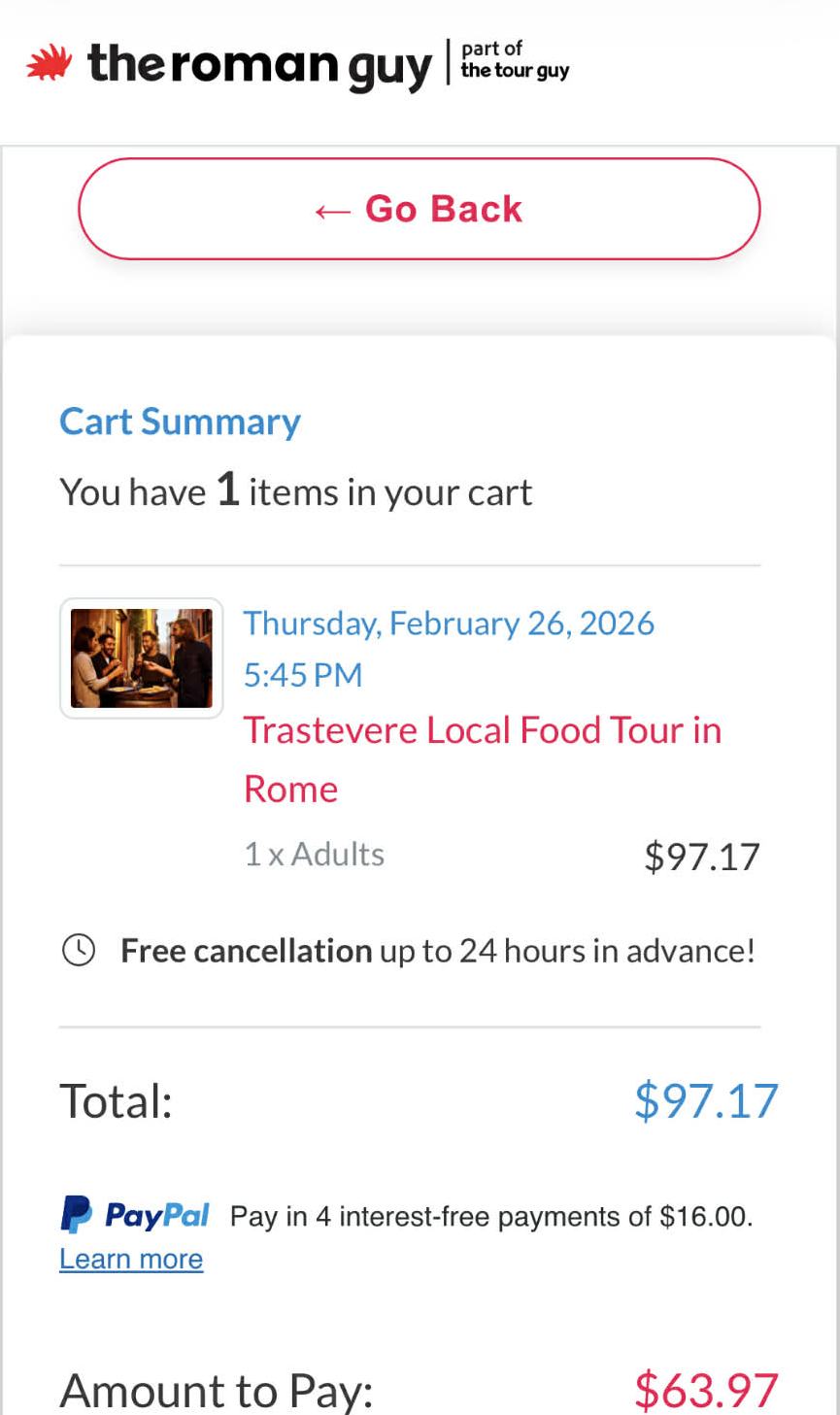
5. Complete Order
If your gift card covers the full amount, you can continue with "Complete Order" button to finalize your order. If you have a remaining balance, you can click "Continue to Payment"
6. Enjoy Your Tour!
Congratulations! You’ve successfully utilized your credit with us to book an awesome tour! Please check your email for your confirmation voucher, which includes all of the necessary details for your tour.